 Slicewise
Documentation
How to use Slicewise
Slicewise adds a story map tab to Jira software projects: company-managed and team-managed, Scrum and Kanban. Start with the short videos, or jump to a topic.
-
Getting started
Transcript
Getting started with Slicewise. Open your project, then click the Slicewise tab. If you do not see it, look under More. Epics are columns. Stories are cards. Each card shows its key. It can also show points, status, and who it is assigned to. Done work is hidden. Switch on Show done to see it. Slicewise remembers this choice for each project. To add a story, click + Story under an epic, type a title, and press Enter. The story is saved in Jira at once, in that epic. To add an epic, click + Epic, type a name, and press Enter. It appears as a new column. Slicewise. A free story map, right inside Jira. Learn more at getslicewise.com.
-
Planning sprints and releases
Transcript
Planning sprints and releases. Set Rows to Sprints. Every sprint becomes a row: the active sprint, future sprints, and the backlog. Drag a story to another sprint. Jira is updated at once. Every change goes straight to Jira: the sprint, the release, and the rank. Set Rows to Releases to see what ships when. Drag a story to another release the same way. Every move also works with the keyboard: press M on a card. You can also drag an epic to change the order of the columns. Slicewise remembers your rows for each project. Slicewise. A free story map, right inside Jira. Learn more at getslicewise.com.
-
Filters and keyboard moves
Transcript
Filters and keyboard moves. Type a word or an issue key in the filter box. The count shows how many stories match. Filtering stays fast, even when your backlog is long. Choose an assignee to see one person's work. Or pick a label. Click Clear filters to start again. Slicewise remembers your rows, assignee, and label for each project, so they are there next time. Each person keeps their own choices. You do not need a mouse. Press Tab to reach a card, then press M. Choose the new epic and position, and press Enter. If Jira refuses a change, the map puts everything back and tells you why. Screen reader labels, and light and dark themes, are built in. Slicewise. A free story map, right inside Jira. Learn more at getslicewise.com.
Videos have captions and voice. Music: "Easy Lemon" by Kevin MacLeod (incompetech.com), licensed under CC BY 4.0 (opens in a new tab).
Open the map
Open a Jira software project and click the Slicewise tab in the row of tabs at the top (Summary, Timeline, Backlog, …). If you don't see it, click More at the end of that row.
Read the map
- Each column is an epic, in Jira's order. The coloured bar on top is the epic's Jira colour.
- Cards are stories (and tasks, bugs — anything that can sit under an epic), in Jira's order.
- The last column, No epic, holds stories without an epic.
- A card shows the name, type and key, and can also show the status (when in progress or done), story points and the assignee's initials.
- The top line counts epics and stories. Show done also shows finished work.
Rows: sprints or releases
- None — one row.
- Sprints — one row per open sprint, then Backlog. If the project has several boards, pick one with Board. Kanban boards have no sprints. If Jira cannot read a board, the map says so and you can pick another.
- Releases — one row per release that is not released yet, then No release.
Move things
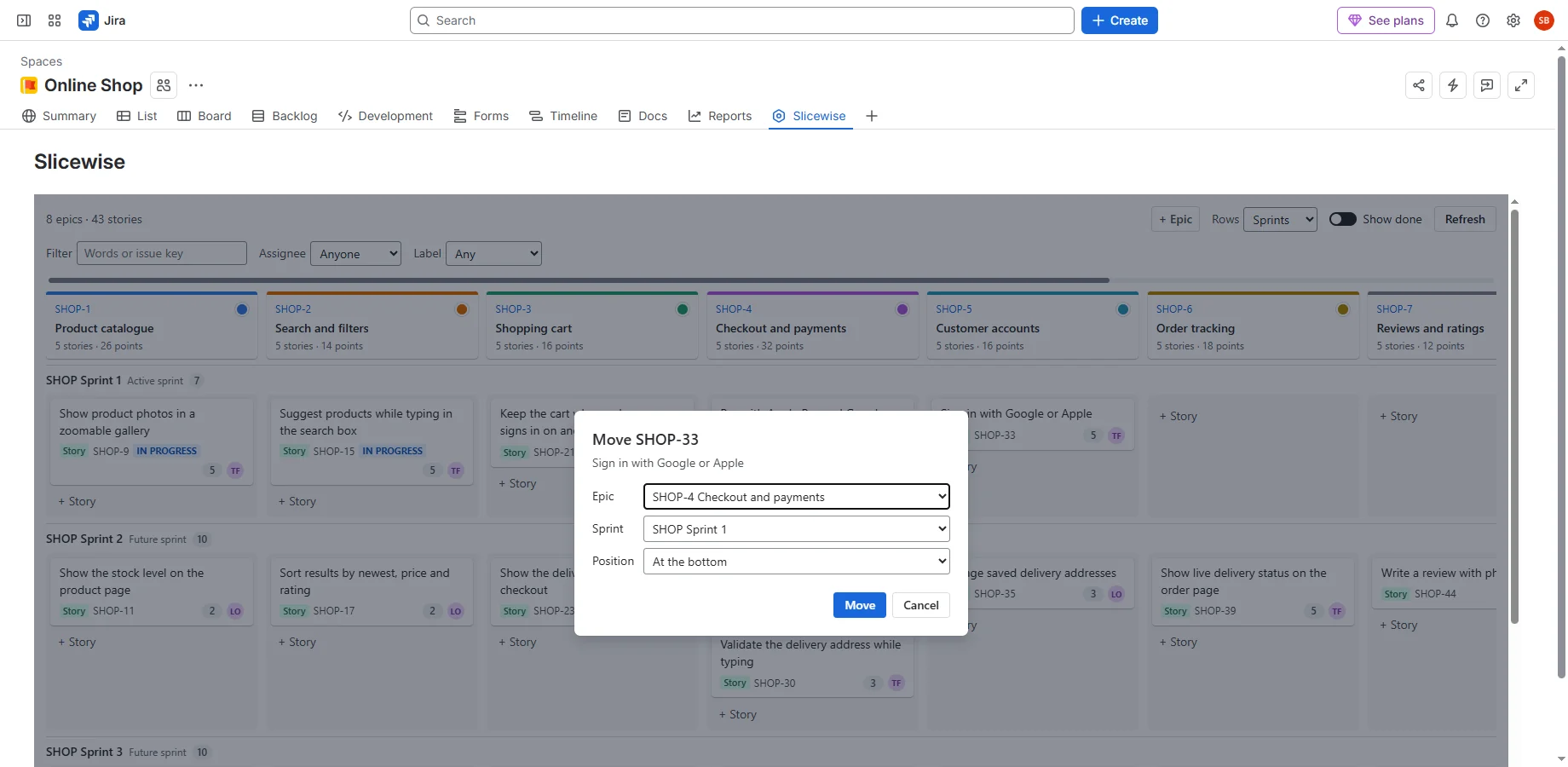
- Drag a card to another epic, row or position. A line shows where it will land. Jira is updated at once.
- Drag an epic (its header) left or right to change the epic order.
- Keyboard: press Tab until a card is outlined, press M, choose where, press Enter. Or point at a card and click Move.
- If Jira refuses a change, the map puts everything back and says why. Nothing is left half-changed.
- If a kind of change is not possible for you in this project, a box at the top — Some changes are switched off here — says what and why.
Add and change
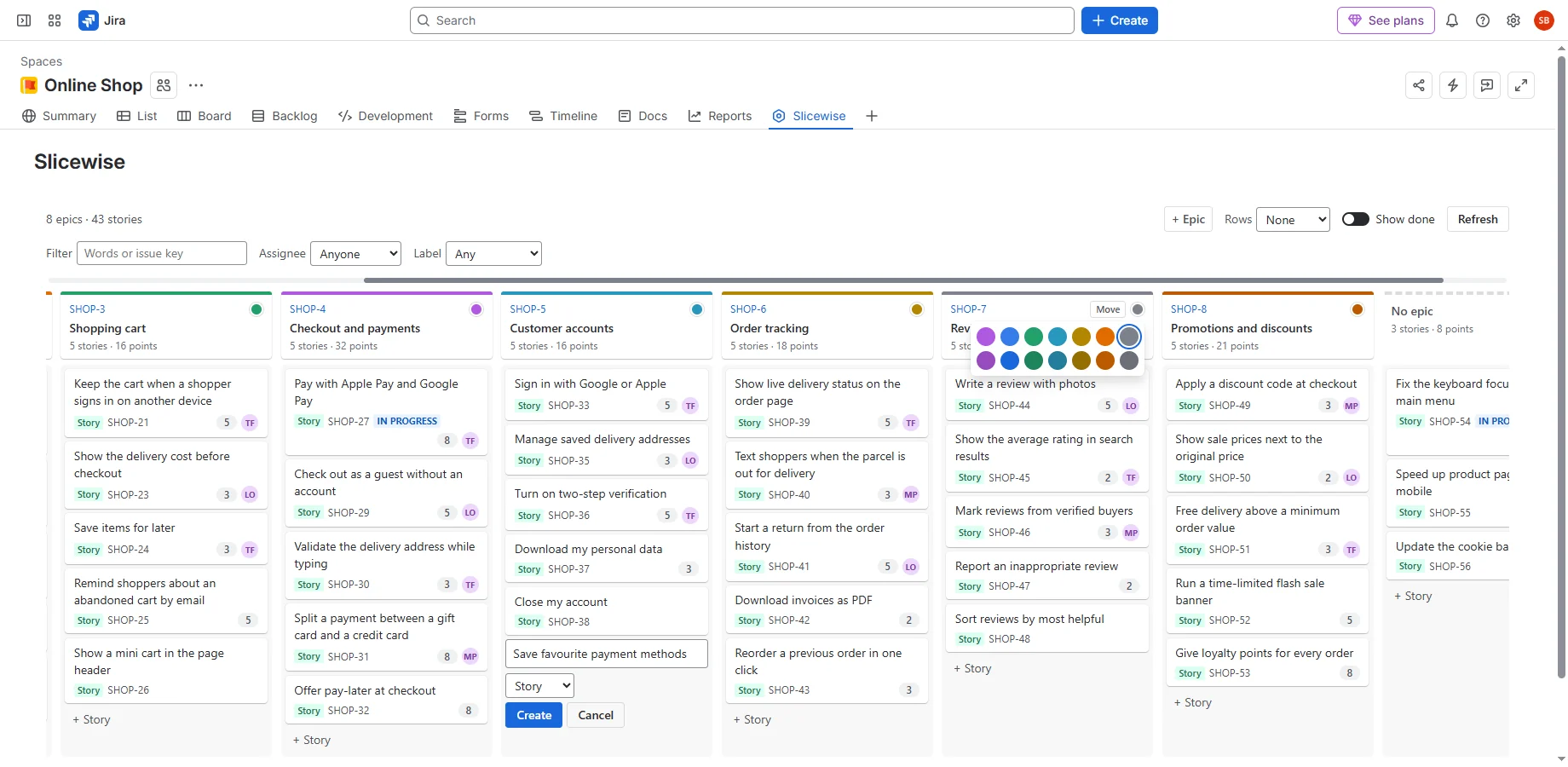
- + Story at the bottom of a cell creates a story there, already in that cell's epic, sprint or release. In the small form you can pick the issue type; your choice is remembered.
- + Epic (top right) creates a new epic column.
- Click the coloured dot on an epic to change its colour.
- Click a card (or press Enter on it) to open the issue in a new tab.
- If a project needs more fields to create an issue than a summary, the map says so and creates nothing. Use Jira's own Create button there.
Filter
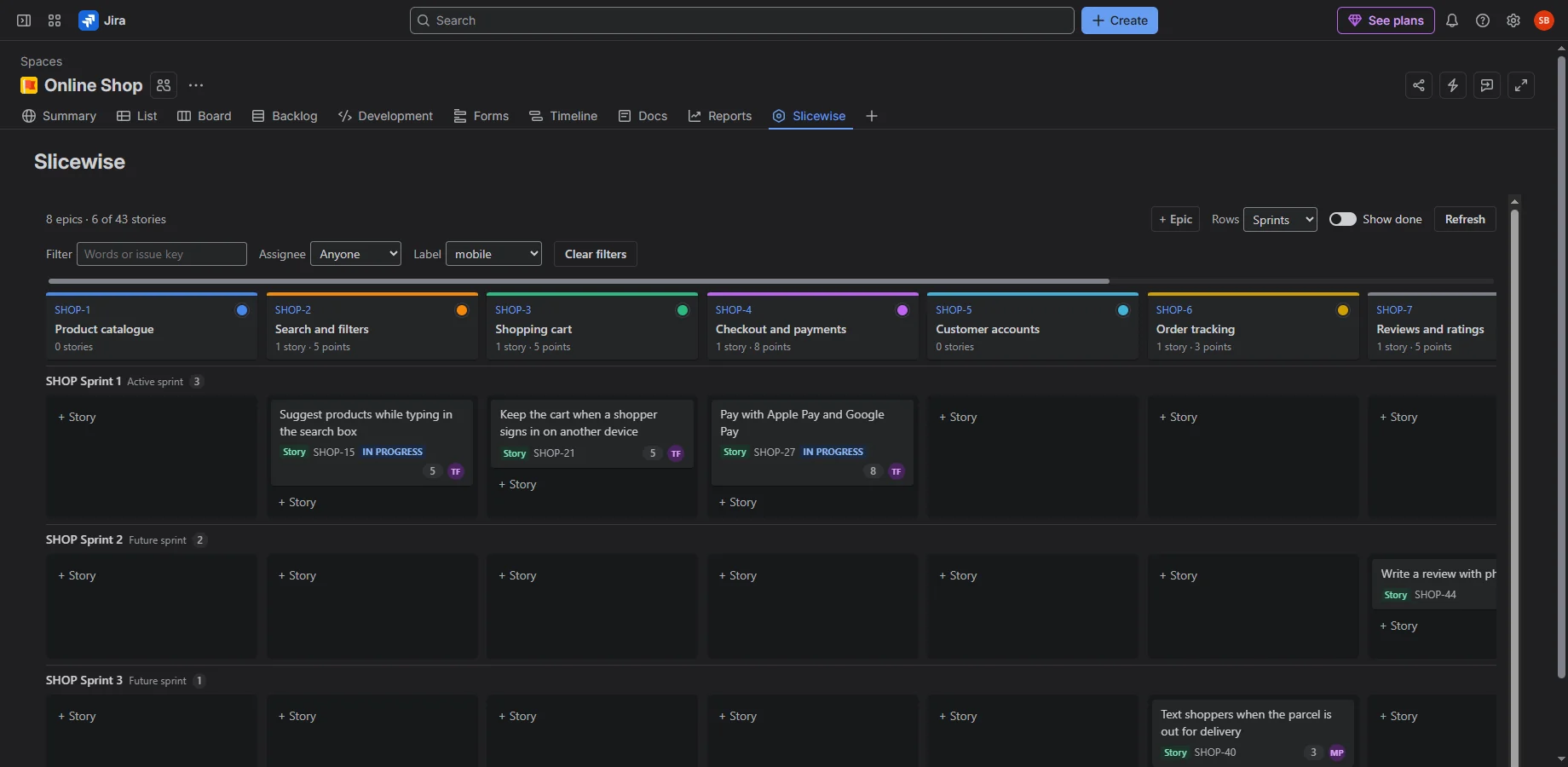
Type words or an issue key in Filter, or pick an Assignee or Label. The top line shows “x of y stories”. Clear filters shows everything again. Your rows, board, Show done, assignee and label filters and issue type are remembered for you, per project (the text filter is not).
Who can do what
Everyone who can see the project can see the map. What you can change follows your Jira permissions:
- Edit issuesMove cards to another epic or release, change epic colours.
- Schedule issues (as well)Reorder cards and epics, and move cards between sprints.
- Create issuesAdd stories and epics.
- No “Edit issues”The map says View only.
Questions and answers
I can't find the Slicewise tab.
It is in the project's top row of tabs; look under More. It only appears in software projects, and the app must be installed on the site.
A note says Jira refused a change because a field “is not on this project's edit screen”.
On most sites Jira accepts the map's changes whatever the edit screen holds, so nothing is switched off in advance. Where Jira does refuse, the change is put back, the reason is shown, and only that kind of change is switched off. A Jira admin can add the field (Sprint, Fix versions, Parent or the epic colour) to the project's edit screen; then click Refresh.
“Sprints” is greyed out in Rows.
None of the project's boards has sprints (Kanban boards, or team-managed projects with sprints turned off), or Jira did not answer for the project's boards.
I see two sprints with the same name.
Jira sometimes creates an empty starter sprint when a Scrum project is made. The map shows sprints exactly as Jira has them.
Some cells have no “+ Story”.
A story could not be put there for you (the project's create screen lacks the field, and you may not change it afterwards). The box at the top says where to add instead.
Why are there no story points on cards?
Points show when the project uses a story points field and the story has a value.
Can I remove an epic's colour?
No — Jira does not allow clearing an epic colour once set. You can pick another colour.
“Jira is busy right now (too many requests)”.
The site asked apps to slow down. The map already waited and retried a few times. Try again in a minute.
Do changes from colleagues appear live?
Not in version 1 — click Refresh.
Does the app send our data anywhere?
No. It is built on Atlassian's Forge platform, has no servers of its own and talks only to your Jira. See the privacy policy.
Still stuck? See Support or write to support@getslicewise.com.