 Slicewise
Your whole Jira backlog on one story map
Epics as columns, stories in Jira's own order, sprints or releases as rows. Drag a story to plan — Jira updates at once.
Free. For company-managed and team-managed projects, Scrum and Kanban.

How it works
From backlog to plan in three steps
Add it to Jira
Install Slicewise on your Jira Cloud site. It's free.
Open the Slicewise tab
It sits in the row of tabs of every Jira software project, next to Backlog and Timeline.
Drag to plan
Move stories between epics, sprints and releases. Jira is updated at once.
See it
Slicewise in 60 seconds
Open the tab, switch the rows to sprints, drag a story and filter a long backlog.
Read the transcript
Slicewise. A free story map for Jira. Open your project and click the Slicewise tab. Your whole backlog is on one page. Epics are columns, and stories are cards. Stories stay in Jira's own order. Cards can show points, status, and assignee. Switch the rows to sprints, and you see what is planned, and when. Done stories stay hidden until you switch them on. Drag a story to another epic or sprint. Jira updates at once. If Jira refuses a change, the map puts everything back and tells you why. Filter a long backlog by words, assignee, or label. Slicewise remembers your choices for each project. Slicewise. A free story map, right inside Jira. Learn more at getslicewise.com.
Music: "Easy Lemon" by Kevin MacLeod (incompetech.com), licensed under CC BY 4.0 (opens in a new tab).
Features
Built for the way teams plan
Everything happens in Jira itself: the epics, sprints, releases and order you already have.
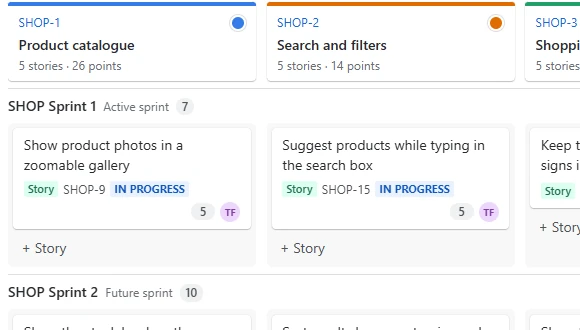
See the whole backlog at once
Epics become columns and stories sit in Jira's own order. Turn on rows for sprints or releases to see what ships when — the slices of your plan.
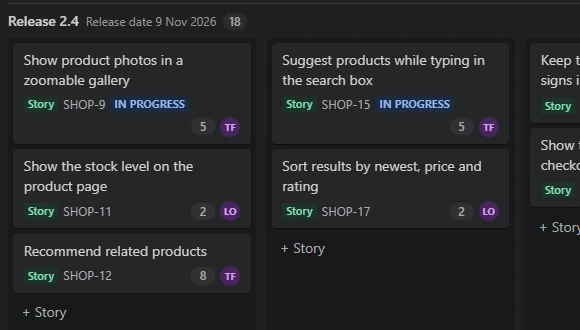
Plan by dragging
Drag a story to another epic, sprint, release or position, and drag epics to reorder them. If Jira refuses a change, the map puts everything back and tells you why.
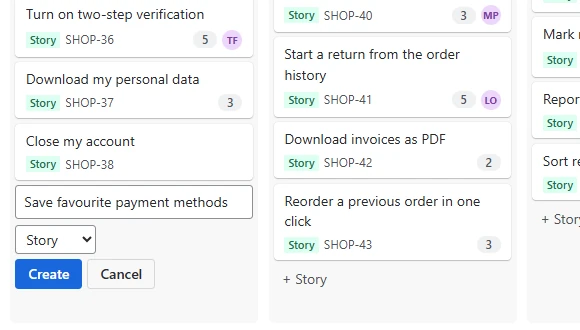
Add and change things in place
Add stories and epics where they belong, colour epics, and filter a long backlog by words, assignee or label. Your rows and filters are kept for each project.
- Keyboard movesPress M on a card to move it with the keyboard.
- AccessibleScreen-reader labels, and light and dark themes.
- Follows Jira permissionsPeople who can't edit see a view-only map.
- Done stays out of the wayDone items are hidden until you switch them on.
- Every kind of projectCompany-managed and team-managed, Scrum and Kanban.
- Points, status, peopleCards can show story points, status and assignee.
Privacy
Your data stays in Jira
Slicewise works inside Jira, in your browser, as you, with your own Jira permissions. The only thing it saves is each person's map choices, on their own Jira user record.
- No servers of ours
- No tracking and no analytics
- Nothing stored outside Jira
- Your Jira permissions apply
Questions
Good to know
Is Slicewise free?
Yes. Slicewise is free.
Which Jira projects does it work with?
Jira Cloud software projects: company-managed and team-managed, Scrum and Kanban.
What does it change in Jira?
Only what you move or add on the map: a story's epic, sprint, release or position, new stories and epics, and epic colours. It uses Jira's own fields, so the backlog, boards and Timeline show the same plan.
Where is my data stored?
In Jira. Slicewise has no servers of its own. It saves each person's map choices (rows, filters) on their own Jira user record. Privacy policy.
Who can move stories?
Slicewise follows Jira's permissions. People who cannot edit or schedule issues see a view-only map.
Where do I get help?
Read the documentation or write to support@getslicewise.com.
Plan your next release on a map
Free for Jira Cloud. Open the Slicewise tab and start dragging.